I was working with my previous code from my MJPEG over HTTP Streaming in a web browser and wanted to add features like single click to bring a camera in full screen and double click to bring everything back to normal. I was originally going to use javascript to accomplish this but was thinking that there was a simpler way to do this without needing to use java script.
I went to W3 Schools and started browsing around for any HTML that dealt with mouse clicks and found that "onclick" and "ondblclick" was exactly what I was looking for.
I tried to use onmouseover and onmouseout but that ended up being really twitchy and would not leave the camera in full screen.
I initially did not hide the other cameras but due to my div tag aligning to the center this made it very difficult to select the correct camera because the alignment of the images.
The following line of code is how I was able to get the video to display full screen (1280x720) on mouse click and to get back to the normal image on double-click. I did this for all three of my cameras and it works perfect for me.
You will notice that the onclick includes the names of the other cameras with no input for the height and width just using single quotes. This is what causes the camera to "disappear" and with the on double click the camera names have their original frame sizes that they were to begin with. You have to include the data in both the onclick and the ondblclick or the images will disappear and not come back on dblclick. Try it out and let me know how it works for you.
I will be working on using some JQuery to have the images sequence on button press that should work fairly well. I tested it with an old JQuery image rotator that I had programmed for one of my web design classed and it worked as intended.
Thanks for looking!!!
Showing posts with label IP Cameras. Show all posts
Showing posts with label IP Cameras. Show all posts
Full Screen on Click Code for for full screen Security Cameras in a web browser
/
Saturday, August 11, 2012 /
Posted in
IP Cameras
MJPEG Video Streaming with IE and Google Chrome Frame !!!!!!
/
Sunday, August 5, 2012 /
Posted in
IP Cameras
Ok so I figured out how to get Live streaming MJPEG video to stream with IE without the need to use an ActiveX plug-in or to log into the cameras directly. I did some research about trans-coding video through the web server to convert the video into a file that was easily playable across all browser.
That seemed like quite a bit of work to me to get IE to play MJPEG video when Chrome and Firefox support it natively. I had ran into a plug in called Google Chrome Frame that is installed into IE to be used as a rendering engine from what I understand.
The only downside of this is that you cannot play live video feeds from a local file (c:\) and have it play through Google Chrome Frame. I had to setup a WAMP server in VirtualBox to test this to make sure that it works correctly.
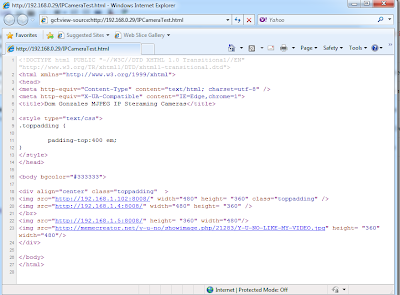
I added the meta header below that I got from the Google Chrome Frame dev docs to have IE use the Google Chrome Frame plug-in over trying to load it with ActiveX or whatever.
<meta http-equiv="X-UA-Compatible" content="IE=Edge,chrome=1">
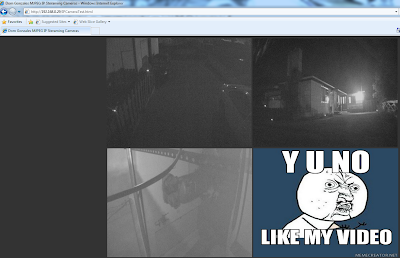
The following screenshots show this working in IE8 along with the source from IE8. Notice that in the address bar the URL is appended with "gcf:" prior to the URL. This shows that IE was using the Chrome plug-in.
My next project will be transcoding H264 video through WebM on the video server for live playback through the various web browsers. That may take a bit longer than this project did.
Note: Google Chrome Frame must be installed for this to work and this has to be ran through a web server. If these two requirements are not met then it will not work, I spent several hours stuck on this because I did not have my code running through a web server and IE would not load it correctly from the local disk.
http://www.chromium.org/developers/how-tos/chrome-frame-getting-started/
That seemed like quite a bit of work to me to get IE to play MJPEG video when Chrome and Firefox support it natively. I had ran into a plug in called Google Chrome Frame that is installed into IE to be used as a rendering engine from what I understand.
The only downside of this is that you cannot play live video feeds from a local file (c:\) and have it play through Google Chrome Frame. I had to setup a WAMP server in VirtualBox to test this to make sure that it works correctly.
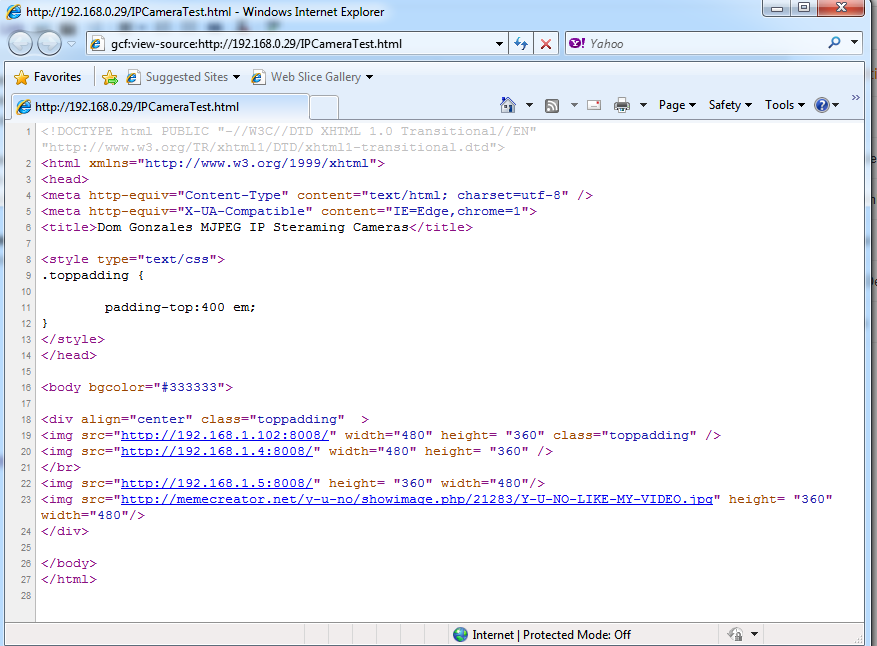
I added the meta header below that I got from the Google Chrome Frame dev docs to have IE use the Google Chrome Frame plug-in over trying to load it with ActiveX or whatever.
<meta http-equiv="X-UA-Compatible" content="IE=Edge,chrome=1">
The following screenshots show this working in IE8 along with the source from IE8. Notice that in the address bar the URL is appended with "gcf:" prior to the URL. This shows that IE was using the Chrome plug-in.
My next project will be transcoding H264 video through WebM on the video server for live playback through the various web browsers. That may take a bit longer than this project did.
Note: Google Chrome Frame must be installed for this to work and this has to be ran through a web server. If these two requirements are not met then it will not work, I spent several hours stuck on this because I did not have my code running through a web server and IE would not load it correctly from the local disk.
http://www.chromium.org/developers/how-tos/chrome-frame-getting-started/
Video Streaming Updates
/
Saturday, August 4, 2012 /
Posted in
IP Cameras
I wanted to update my previous post about live streaming video. I tested this with Chrome and Firefox(Waterfox) with no issues. I was using this at work and found that it will not work with IE8 or IE9 due to IE wanting to load the ActiveX controller.
I am currently looking at more options to pull streaming MJPEG video through IE without the need to use an ActiveX control. I am looking at Google Chrome Frame right now for this task, the downside to Google Chrome Frame is that it will not load a local file from the hard drive so I am getting my webserver setup on my virtual machine to test this.
The code in the link below will work with Vivotek and Toshiba cameras using the formatting:
http://<ip address>:8080(MJPEG port)/MJPEG stream path
eg: http://192.168.100.100:8080/video.mjpg
The above example would pull stream one for the cameras at whatever the frame rate and resolution is. I did have the code running with 9 cameras in a single browser interface and it was pretty smooth, but I don't know what the limitations of pulling say 32 channels of video through the web interface. Your network utilization would be through the roof since this is all a MJPEG stream.
http://domritb.blogspot.com/2012/08/i-generated-this-code-due-to-me-having.html
I am currently looking at more options to pull streaming MJPEG video through IE without the need to use an ActiveX control. I am looking at Google Chrome Frame right now for this task, the downside to Google Chrome Frame is that it will not load a local file from the hard drive so I am getting my webserver setup on my virtual machine to test this.
The code in the link below will work with Vivotek and Toshiba cameras using the formatting:
http://<ip address>:8080(MJPEG port)/MJPEG stream path
eg: http://192.168.100.100:8080/video.mjpg
The above example would pull stream one for the cameras at whatever the frame rate and resolution is. I did have the code running with 9 cameras in a single browser interface and it was pretty smooth, but I don't know what the limitations of pulling say 32 channels of video through the web interface. Your network utilization would be through the roof since this is all a MJPEG stream.
http://domritb.blogspot.com/2012/08/i-generated-this-code-due-to-me-having.html
MJPEG over HTTP Streaming in a Web Browser
/
Thursday, August 2, 2012 /
Posted in
IP Cameras
I generated this code due to me having IP cameras an not wanting to use ActiveX or Quick Time to play the video streams. The cameras that I am using are OpenEye CM-610 and CM-710 IP cameras. The cameras support MJPEG Streaming over HTTP (Port 8008 for these cameras). The cameras have to have multiple streams enabled specifically the MJPEG stream enabled so that it can pull the MJPEG stream with this code and have the recorder record the other stream for compression and data retention purposes.
H264 needs to be decoded and then encoded prior to displaying in a webpage as a stream. There is a opensource site called Webbit that has open sources code to use with Websockets that might work to pull MPEG4 or H264 video streams in a browser. I have tested this in chrome with 3 cameras and the Y U NO meme guy just for fun.
If accessing the code from outside the local network there may be a need to load up WAMP for a web server, change the ports to be in sequence, and then complete port forwarding to connect outside the LAN.
Keep in mind that the IP addresses that I used are statically set for my cameras and will need to be changed to get these to work on your setup.
<Disclaimer> I am not a developer but a guy that likes to tinker with programming. If this code does not work for you I am not supporting the code. It works for the cameras that I have but I do not have other cameras to test for compatibility with this code. </Disclaimer>
Thanks for looking !
H264 needs to be decoded and then encoded prior to displaying in a webpage as a stream. There is a opensource site called Webbit that has open sources code to use with Websockets that might work to pull MPEG4 or H264 video streams in a browser. I have tested this in chrome with 3 cameras and the Y U NO meme guy just for fun.
If accessing the code from outside the local network there may be a need to load up WAMP for a web server, change the ports to be in sequence, and then complete port forwarding to connect outside the LAN.
Keep in mind that the IP addresses that I used are statically set for my cameras and will need to be changed to get these to work on your setup.
<Disclaimer> I am not a developer but a guy that likes to tinker with programming. If this code does not work for you I am not supporting the code. It works for the cameras that I have but I do not have other cameras to test for compatibility with this code. </Disclaimer>
Thanks for looking !

